Viewing Service Calls

At this time, you must convert a quote to work order in order to create an invoice

To create an invoice from a quote, click on “Quotes” on the left side menu, then click “View Quotes. Next click on the action menu to the right of the quote you want to convert. This will show you a popup of actions, click View Quote.

Now, click on Convert to Work Order at the top right of the page. This will Bring up a popup. Check the Create Invoice checkbox. Then click Convert Quote to Work Order.

Convert Quote to Work Order

Once a quote is converted to a work order, it will not be displayed on your quotes list.

To convert a quote to a work order, click on “Quotes” on the left side menu, then click “View Quotes. Next click on the action menu to the right of the service call you want to convert. This will show you a popup of actions, click View Quote.

Now, click on Convert to Work Order at the top right of the page. This will Bring up a popup. If you would like to create an invoice from this quote, check the Create Invoice checkbox. Then click Convert Quote to Work Order.

Convert Quote to Work Order

Once a quote is converted to a work order, it will not be displayed on your quotes list.

To edit a quote, click on “Quotes” on the left side menu, then click “View Quotes”. Next click on the action menu to the right of the quote you want to edit. This will show you a popup of actions, click Edit Quote.

Editing Quotes

To create a quote you can click on the “Create Quote” button at the top of your dashboard or click on “Quotes” on the left side menu, then click “Create Quote”.

Complete all the required data related to the Quote. Once you have completed the form click “Save Changes”.

Watch Our Video Tutorial

To view your quotes, click on “Quotes” on the left side menu, then click “View Quotes”. The quotes are ordered by the newest entered first. You can resort the list by clicking the headers, it will initial sort in ascending order, by clicking the header again it will order in descending order.

Filtering Quotes

You can filter the quotes by date by clicking the “Choose Date Range” link in the top left section of the quotes list. This will filter the quotes by date.

You may also filter quotes by status by clicking the Filter By: Status drop down, or you can search quotes by entering a search term and clicking the enter key.

Filtering Quotes

Welcome to the Service Wiz blog! Your go-to destination for insights, tips, and updates on field service management! Whether you’re a small business owner, a service technician, or a large enterprise looking to optimize operations, this blog is here to provide valuable information to help you streamline your workflow and improve efficiency.

What is Service Wiz?

Service Wiz is a powerful field service management software designed to help businesses manage scheduling, dispatching, invoicing, and customer communications seamlessly. Our platform is built to simplify operations, reduce paperwork, and improve customer satisfaction—all in one easy-to-use system.

What You Can Expect from Our Blog

In this blog, we’ll cover a variety of topics related to field service management, including:

Industry Trends – Stay updated on the latest advancements in field service technology.
Best Practices – Learn how to enhance your operations and improve team productivity.
Software Updates – Get the latest news on new features and improvements in Service Wiz.
Customer Success Stories – See how businesses like yours are benefiting from our software.
Tips & Tricks – Discover ways to maximize the use of Service Wiz for your business.

Join the Conversation

We’re excited to have you here! Subscribe to our blog, follow us on social media, and feel free to engage with us by sharing your thoughts and experiences. If you have any topics you’d like us to cover, let us know—we’re here to help!

Welcome to the Service Wiz community!

-The Service Wiz Team

To convert a service call, click on “Service Calls” on the left side menu, then click “View Service Calls”. Next click on the action menu to the right of the service call you want to convert. This will show you a popup of actions, click View Service Call.

Edit Service Call

Now, click on Convert to Quote  the top right of the page. This will take you to a page that will pre-populate with all of the data from the service call. You will just need to add your inventory/parts and labor.

When you have completed entering the data, click “Save Changes”

To edit a service call, click on “Service Calls” on the left side menu, then click “View Service Calls”. Next click on the action menu to the right of the service call you want to edit. This will show you a popup of actions, click Edit Service Call.

Edit Service Call

When editing a Service Call, the appointment date and service technician will be locked. This is to make sure that if you need to change the appointment date or technician that you are given the opportunity to alert the customer. If you need to change the appointment date and time, or service tech, click the Change appointment time checkbox.

Update appointment date and time

Once you have made your changes, you can click Save Changes at the bottom of the page.

To create a service call you can click on the “Create Service Call” button at the top of your dashboard or click on “Service Calls” on the left side menu, then click “Create Service Call”.

Complete all the required data related to the service call. Once you have completed the form click “Save Changes”.

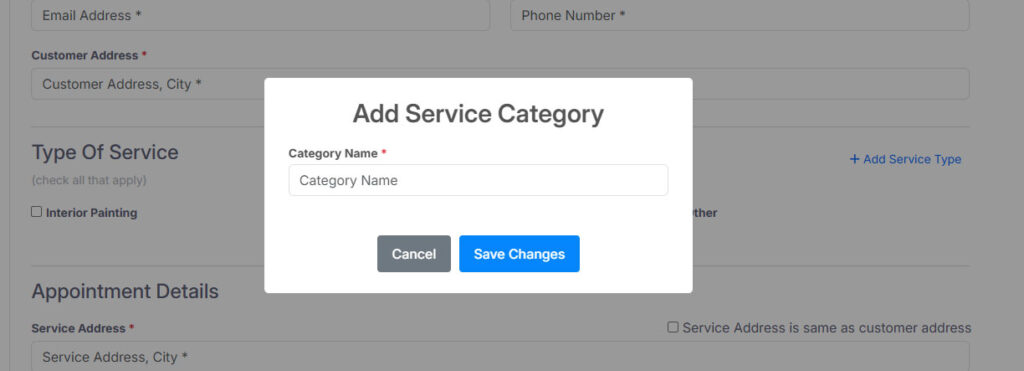
Adding a new service type

If you need to add a service type you can click the + Add Service Type. A popup will display to enter your new service type. Click “Save Changes”.

You can also click on the gear icon at the top of the page to go to your account settings and add service types from the Services Provided tab.

Assigning a date/time and service tech

To assign an appointment time, click on the Appointment Date or Appointment Time selection. This will bring up a popup screen with your service technicians and a calendar. If there has not been a service tech assigned, you will click on the desired service tech, then click on the date and time you wish to assign.

Then scroll to the bottom of the calendar and click Set Appointment Date

Assigning date and time
If this appointment requires customer approval, be sure to click the Customer approval required checkbox below the appointment date. This will send the customer a link to approve, cancel or reschedule the appointment.

Once you have entered all the required data, you can click Save Changes at the bottom of the page.

To view your service calls, click on “Service Calls” on the left side menu, then click “View Service Calls”. The service calls are ordered by the newest entered first. You can resort the list by clicking the headers, it will initial sort in ascending order, by clicking the header again it will order in descending order.

Viewing Service Calls

Filtering Service Calls

You can filter the service calls by date by clicking the “Choose Date Range” link in the top left section of the service calls list. This will filter the service calls by appointment date.

You may also filter service calls by status by clicking the Filter By: Status drop down, or you can search service calls by entering a search term and clicking the enter key.

Filtering Service Calls

Exporting Service Calls

If you would like to export your service calls to a csv file, click the Export Service Calls link in the top right of the page.